
The content on this page has been converted from PDF to HTML format using an artificial intelligence (AI) tool as part of our ongoing efforts to improve accessibility and usability of our publications. Note:
- No human verification has been conducted of the converted content.
- While we strive for accuracy errors or omissions may exist.
- This content is provided for informational purposes only and should not be relied upon as a definitive or authoritative source.
- For the official and verified version of the publication, refer to the original PDF document.
If you identify any inaccuracies or have concerns about the content, please contact us at [email protected].
XBRL Yeti-Taxonomy Viewer Guide
1. Welcome to Yeti
Yeti is a versatile review tool for viewing and commenting on XBRL taxonomies. This guide describes how to use the Yeti Taxonomy Viewer, and is aimed at all users. The Taxonomy Viewer is where taxonomy review takes place. You can browse relationships, examine concept details, make comments and view comments that other users have made. Some sections of the guide are only relevant to users with admin-istrative permissions.
The officially supported browsers for Yeti are the latest versions of Firefox and Internet Explorer.
Please be aware that there could be some minor display issues when using Yeti on Linux or Mac OS
1.1. The Taxonomy Viewer
When you arrive at the Yeti homepage, you will be shown a list of taxonomies available for public viewing (fig. 1.1).
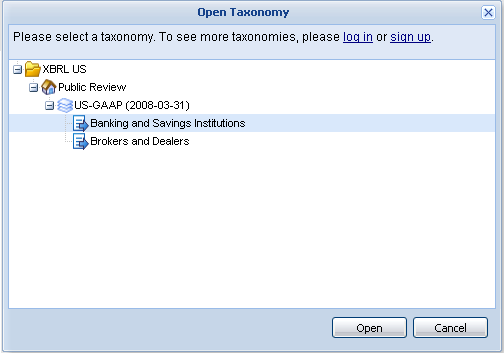
Figure 1.1: The Open Taxonomy dialog.
You can choose a taxonomy from this list, or log in by clicking on the log in hyperlink to see additional sub-scription-only taxonomies (fig. 1.2). If you already have a Yeti account you can log in with your username, which is the same as your email address. If your system administrator has enabled Yeti authentication via an LDAP server then you do not need a Yeti account. You can just log in with your LDAP username and password.
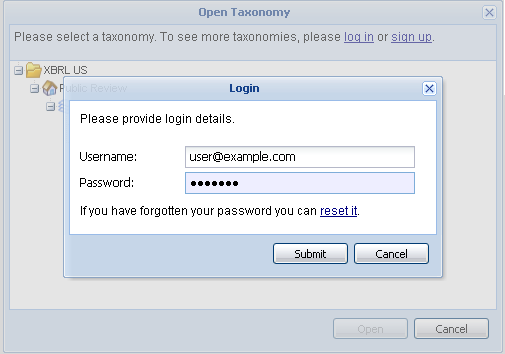
Figure 1.2: The Login dialog. {: #figure-1-2 }
If you need a Yeti account, you can create one by clicking the sign up hyperlink in the Login dialog, or the Sign Up button on the menu bar. The email address you enter will also be the username you need to log in to Yeti.
NOTE: The sign up option will only be available if it has been enabled by a Yeti Administrator.
To return to the list of taxonomies, click Taxonomy > Open (fig. 1.3).
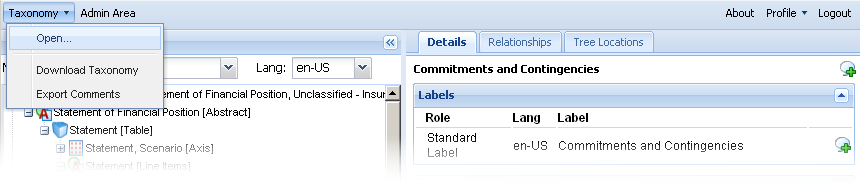
Figure 1.3: The Taxonomy menu.
The Taxonomy Viewer is arranged into three main areas (fig. 1.4):
- Network Browser
- Details Area
- Tools Panel
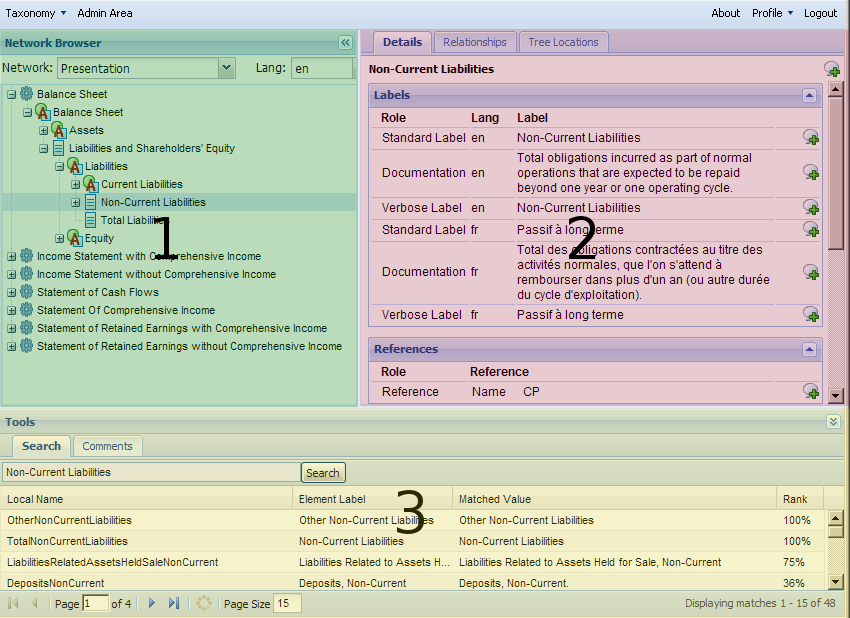
Figure 1.4: The three main areas in the Taxonomy Viewer.
Each of these areas is resizable. Additionally, the Network Browser and Tools Panel can be hidden/re-shown using the (minimise button icon) button in the top right hand corner of the panel. Clicking on the panel bar of a collapsed panel will temporarily show it over open panels.
2. Viewing Concepts
2.1. Network Browser
When the taxonomy you selected from the Open Taxonomy dialog has loaded, the Network Browser on the left hand side of the page will display relationships between concepts in the taxonomy. Clicking on a concept in the Network Browser will open its details in the Details Area.
If the taxonomy has labels in multiple languages, you can select the label language from the Network Browser's menu bar (fig. 2.1).
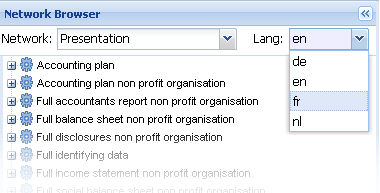
Figure 2.1: Language selection in the Network Browser.
The Network Browser will show concept labels in the chosen language if a standard label (or in the presen-tation parent-child network, a preferred label) exists in that language. If no such label exists, the element name will be displayed instead. Changing the language will also change the concept labels displayed in the search and comment views and concept title in the Details Area.
You can switch between networks in the taxonomy using the network drop down (fig. 2.2).
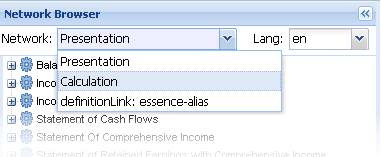
Figure 2.2: Network selection in the Network Browser.
2.2. The Details Area
When you select a concept in the Network Browser, its details will be shown in the Details Area. This pane contains three tabs – Details, Relationships and Tree Locations – giving you access to different aspects of the concept's definition.
2.2.1. The Details Tab
The Details tab in the Details Area shows the labels, references, XBRL attributes and custom item type information defined for the concept (fig. 2.3). If the taxonomy contains labels or references in a non-standard group (or extended link role in XBRL speak), a Group column will also appear in the relevant panel (labels or references). If only the Standard Role is used, this extra column will not be shown.
NOTE: The custom type information panel displays the details of custom types only. It will not show details of standard XBRL data types or types with complex content such as tuples.
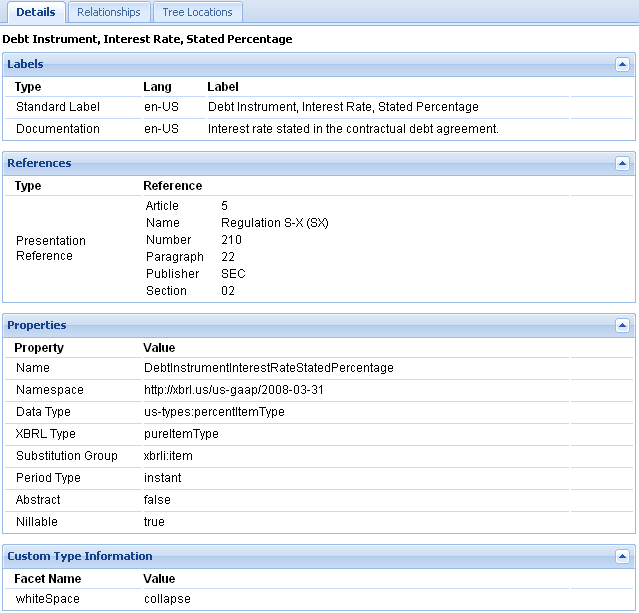
Figure 2.3: The Details tab.
You can rearrange the three panels in this view by dragging and dropping. You can also collapse panels that are not of interest using the minimise (minimise button icon) button in the top right hand corner or double clicking on the table header.
2.2.2. The Relationships Tab
The Relationships tab shows the calculation relationships defined for a concept (fig. 2.4). If a concept in the calculation has a balance attribute defined, it will be shown next to the concept as Dr for Debit or Cr for Credit.
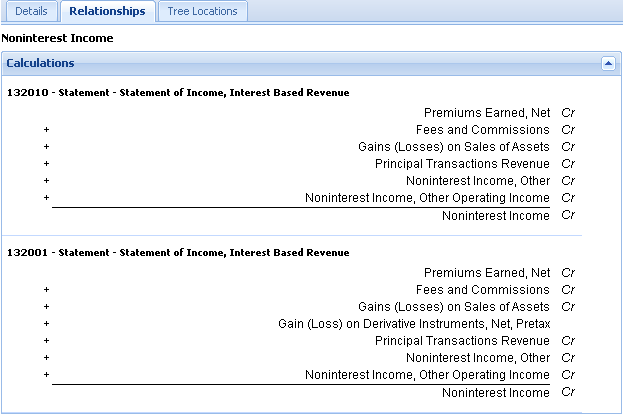
Figure 2.4: The Relationships tab.
2.2.3. The Tree Locations Tab
Concepts are often used in more than one place in a single XBRL taxonomy. The Tree Locations tab dis-plays information relating to the current concept across the whole taxonomy (fig. 2.5). Direct children are shown in grey, direct ancestors are shown in black and occurrences of the current element are highlighted in gold. This allows you to review all occurrences, in all networks, of the current concept. Clicking on a concept in the Tree Locations tab will take you to its location in the Network Browser and open its details in the Details tab.
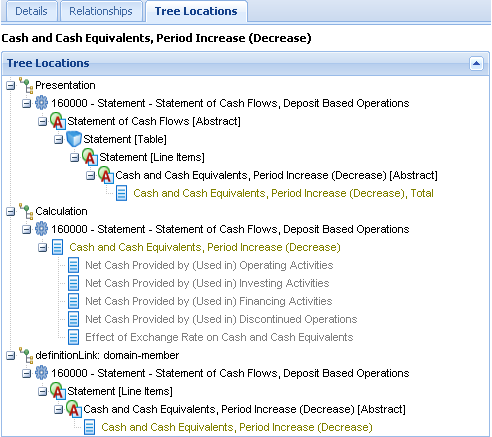
Figure 2.5: The Tree Locations tab.
2.3. Linking to Concepts
Every concept in Yeti has its own URL. This means that after browsing to a concept, you can save a link to it. You can embed direct links to different concepts in emails or other documents, as well as store locations to return to later.
2.4. Downloading a Taxonomy
To download the currently open taxonomy:
- Taxonomy > Download
- Click on Download File.
- Save the taxonomy.
3. Searching
Yeti provides a powerful search tool. The search tool is in the Tools Panel, next to the Comments tab (fig. 3.1). Search terms that you enter into the search box will be matched against any label or reference defined for a concept and results returned in order of relevance.
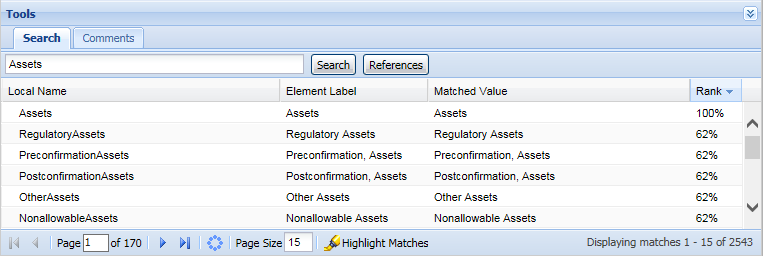
Figure 3.1: The Search tab.
The columns shown in the search results are sortable (e.g you can sort by Local Name instead of relevance if desired). The columns can also be rearranged by dragging and dropping. You can refine your search using the following techniques:
- "+" in front of a word denotes a word that must appear in the results.
- "-" in front of a word denotes a word that must not appear in the results.
- "AND" between words denotes that both words must appear in the results.
- "NOT" before a word denotes that the word must not appear in the results.
- Double quotes around several words denotes an exact string that must be matched.
- "*" is a wildcard that can be used to match parts of words.
- "?" is a wildcard that can be used to match one character.
- "~" can be added after a word to match words with similar spellings.
| Example Query | Results |
|---|---|
| Amoriti?e | Returns all concepts containing Amorti?e where ? is any single character. I.e. concepts containing either Amortize or Amortise will be matched. |
| Colour~ | Returns all concepts containing a word that is similar to Colour. I.e. concepts containing either Colour or Color will be matched. |
3.1. Advanced Searching
It is possible to restrict search results based on the contents of specific fields by prefixing the search term with the field name and a colon. The available fields are:
- type: possible values are localname, label, reference.
- role: the URI of a label or reference resource role. Can contain wildcard characters.
- rp_x: text to search for within reference part with localname X. The "References" button will show a dialog to make this easier.
If no field is specified then all of the indexed text content is searched. These terms can be combined with other search terms to restrict the results further by means of the "AND" keyword. Such combinations cannot combine multiple types. See the type:reference example below.
| Example Query | Results |
|---|---|
| type:label | Returns all concepts which have one or more labels. |
| type:label AND Assets | Returns all concepts with a label contain-ing the word Assets. |
| role:http://www.xbrl.org/2003/role/verboseLabel | Returns all concepts with a verbose label. |
| role:http://www.xbrl.org/2003/role/*DisclosureRef AND Assets | Returns all concepts with any type of dis-closure reference containing the word Assets. |
| rp_Publisher:XBRL | Returns all concepts with a reference part called 'Publisher' containing the word XBRL. |
| type:reference AND Guarantee | Returns all concepts where a reference contains the word 'Guarantee', but not those where the word only appears in a label. |
Clicking on a search result in the list of matches will open the Details Area for that concept and if it exists in the currently selected network, the Network Browser will scroll to show its location.
NOTE: The role URI for a label can be viewed by hovering over its type in the details area.
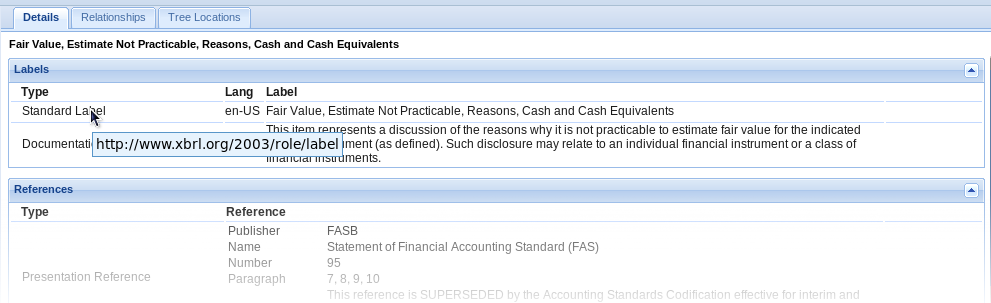
Figure 3.2: Viewing label role URI.
3.2. Shared Searches
Yeti includes a shared search feature. Review group managers and other administrators can create shared searches within review groups, which any user can then run. If any shared searches exist for the current review group, a list of them will be displayed at the top of the Search tab. Selecting a search from this list will place its query in the search box, and run it.
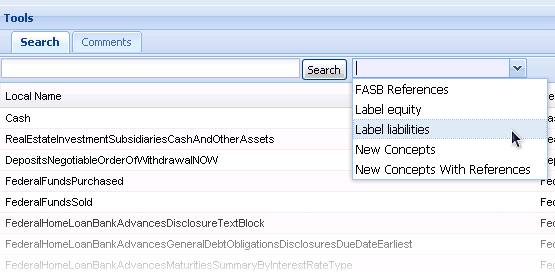
Figure 3.3: Selecting a Shared Search.
Every shared search has its own URL. This means that after running a shared search, you can save a link to it. The link will reflect whether or not highlighting of search matches (see below) was turned on when you saved it. You can embed direct links to different shared searches in emails or other documents, as well as store them to return to later.
3.3. Highlighting Search Matches
It is possible to highlight the concepts matched by the most recent search in the Network Browser. High-lighting is off by default and can be turned on and off using the Highlight Matches button at the bottom of the Search tab.
The highlighting uses two colours: bright yellow to indicate concepts which matched the search, and pale yellow to indicate unexpanded groups or concepts which did not match, but have descendant concepts which did match.
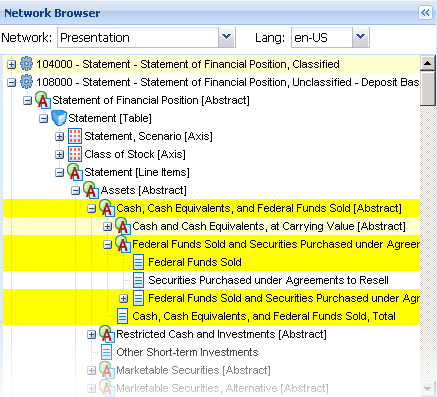
Figure 3.4: Search Match Highlighting in the Network Browser.
3.4. References Search
Yeti includes a dialogue that enables searches on combinations of reference parts. The References Search dialog can be opened from the search tab with the References button.
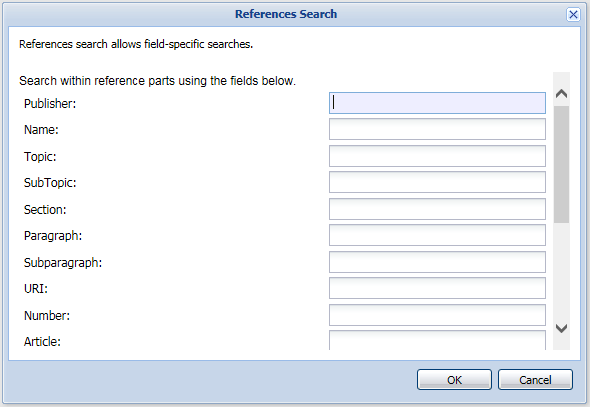
Figure 3.5: The References Search dialog.
The references search dialog is populated with a list of reference parts that are used in the taxonomy. By entering search terms in the corresponding text fields, it is possible to search for concepts by the values of reference parts. All reference parts which have search terms are required to match for a concept to be displayed.
NOTE: Reference part searches cannot be combined with searches in labels or concept names. No concepts will be returned.
4. Commenting
Yeti's commenting functionality will only be available as described below if the following criteria are met:
- A suitable licence has been installed by your system administrator.
- The taxonomy is open for commenting (set by Yeti administrators).
- You have contributor (or higher) status within the review group (set by Yeti administrators).
- You are logged in.
If a subset of these conditions are met (e.g. the taxonomy is open for comments, but you have Reviewer status) then some of the following will still apply.
Comments can be added either to a concept in general, or to a specific label, reference, property or custom item type facet. Adding a new comment to any of these starts a new issue. It is also possible to make comments on existing issues.
4.1. Adding New Comments
See also Making Comments on Existing Issues.
In the Details Area for a concept, there is an Add Comment icon (plus sign icon) next to every component which is available for commenting (see fig. 4.1).
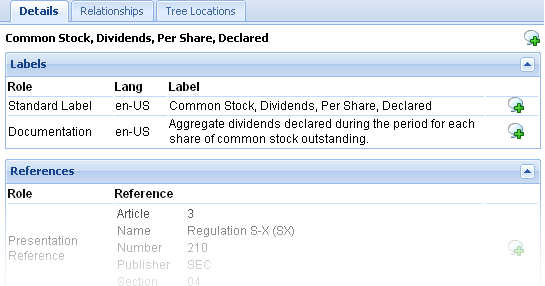
Figure 4.1: Add a comment.
To add a new comment, click on the Add Comment icon next to the component you wish to comment on. This will open a dialog into which you can enter your comment (fig. 4.2).
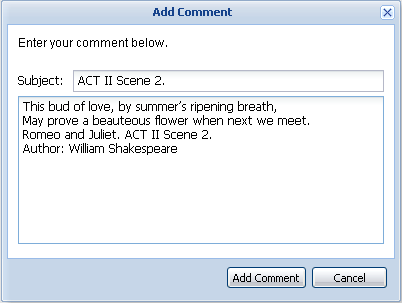
Figure 4.2: The Add Comment dialog.
NOTE: If Moderating Comments has been set up for the review group, and you have contributor status, your comment will not be visible until it has been accepted by a moderator.
4.2. Viewing Comments
Clicking on the Comments tab next to the Search tab in the Tools Panel displays a list of all comments in the currently open taxonomy, grouped by issue (fig. 4.3). The list can be filtered to show only comments for the concept currently open in the Details Area by checking the box in the tab header (see fig. 4.3).
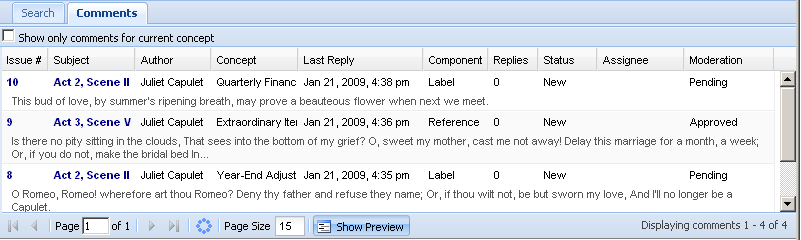
Figure 4.3: The Comments tab in the Tools Panel.
Clicking once on an issue in the Comments tab will open the concept to which it relates in the Details Area, with a marker indicating which component it applies to. Double clicking on an issue in the Comments tab will open the issue in a dialog (fig. 4.4). All comments made on the issue will be shown.
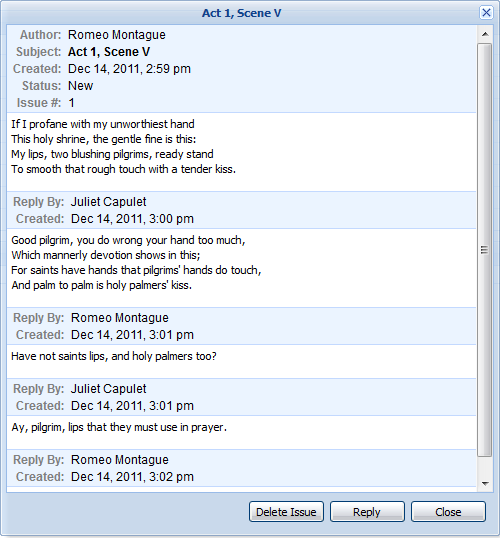
Figure 4.4: The View Issue dialog.
If a component already has comments, the number of existing issues will be shown to its right. Clicking on this number will pop up a list of the five most recently added or changed issues (fig. 4.5). Clicking on an issue on this list will open the issue as in figure 4.4.
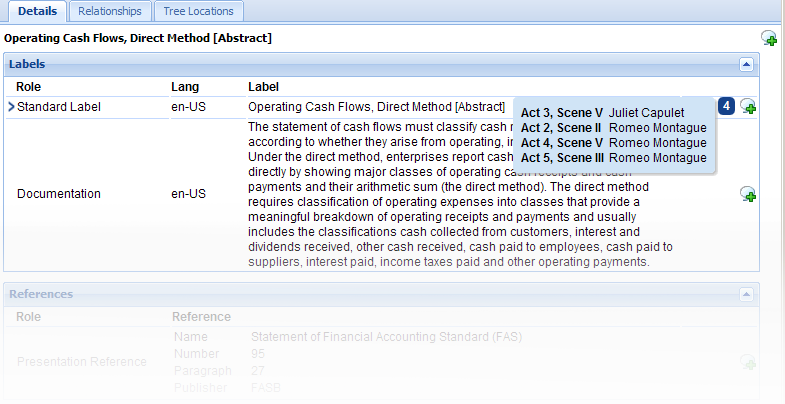
Figure 4.5: The Issue Indicator popup.
4.3. Making Comments on Existing Issues
When viewing an issue, you can make a comment on it by clicking Reply (fig. 4.4). This will open a dialog similar to figure 4.2, with the subject line already filled in. Clicking Add Comment will add your comment to the selected issue.
4.4. Changing the Status of an Issue
Review group managers and other administrators have permission to change the status of an issue to any of the following:
- New - The default status given to an issue when the first comment is made.
- Assigned for review
- Assigned for implementation
- Closed
- Closed - wontfix
- Closed - implemented
- Closed - duplicate
To change the status of an issue:
- Open the issue from the comments tab (see Viewing Comments).
- Click Reply.
- Enter a message (usually describing your action) in the text box.
- Select a status from the drop down list (see fig. 4.6).
- If you have chosen Assigned for review or Assigned for implementation you will also need to assign the issue to a user in the current review group. Start typing their name or email address into the box to see a list of possible matches and select the correct one.
- Click Add Comment to submit your change and close the dialog.
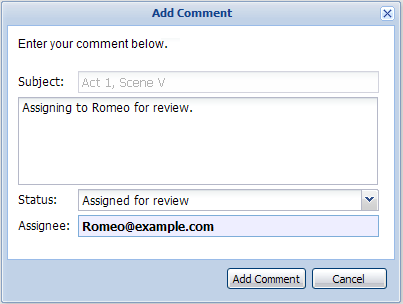
Figure 4.6: The Reply to Comment dialog for changing a comment's status.
4.5. Deleting Issues
To delete an issue (all comments made on the issue will be deleted):
- Open the issue (see Viewing Comments).
- Click Delete Issue.
- Click Delete again on the confirmation dialog.
4.6. Moderating Comments
If moderation of comments has been set for the review group (set by a Yeti Administrator), users with Review Group Manager status or higher will need to approve any comments made by users with Contrib-utor status.
The Viewing Comments tab in the Tools Panel will show an additional column, Moderation, which indicates which issues have comments pending moderation, or have already been moderated and approved (fig. 4.7).
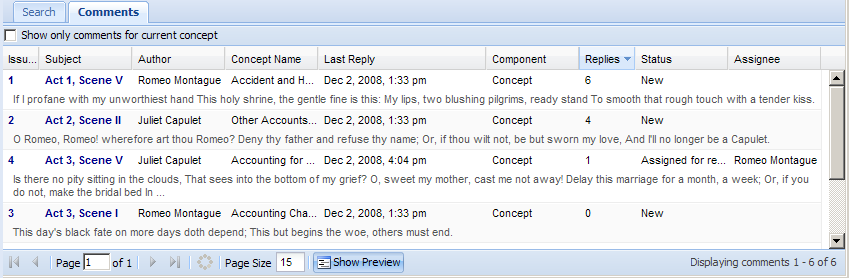
Figure 4.7: Comments tab with comments to moderate.
To moderate a comment:
- Open the issue which has comments pending moderation by double clicking on it in the Comments tab.
- Comments requiring moderation will have a Moderate panel above them (see fig. 4.8). Select either Approve (to approve the comment, making it visible to all users with Trusted Contributor, Contributor or Reviewer status) or Reject (to delete the comment from the issue).
- Click Moderate.
- Click Close to close the dialog.
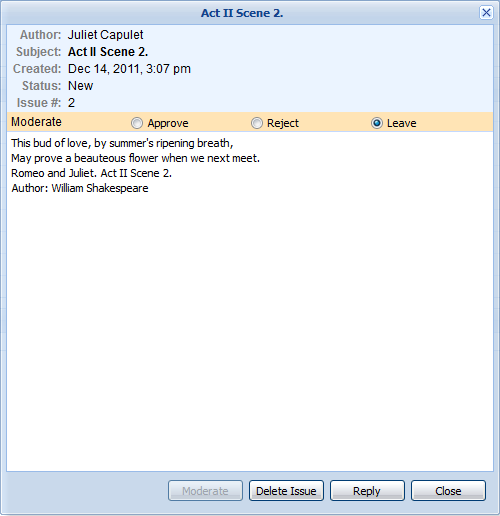
Figure 4.8: Moderate a comment in the View Issue dialog.
4.7. Exporting Comments
To export all comments in the currently open taxonomy to an Excel spreadsheet:
- Taxonomy > Export Comments
- Click on Download File.
- Save the Excel file.
5. Editing Your User Profile
When logged in, you can view and update your user details from the Profile menu on the menu bar.
5.1. Edit Your Details
To edit your details, click Profile > User Details. From here you can set a new password and choose whether or not to receive email notification about new comments (fig. 5.1). If the email notification option is checked, you will receive an email every time a comment is made on a taxonomy for which you have commenting privileges. You need to explicitly belong to the review group for this (i.e. project administra-tors and super users will not receive notification of comments unless they also have a manager, trusted contributor or contributor role within the group).
If you are a Review Group Manager and you have chosen to receive email notification about new com-ments, you will also receive email notification about comments pending moderation.
If the site options allow it, you will also be able to update your name and email address (also used as your username). If these fields are disabled, you will need to contact your review group manager to update your details.
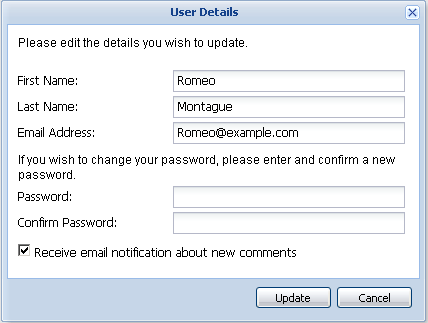
Figure 5.1: The User Details dialog.
NOTE: If you are logged in with your LDAP username and password you will not be able to change your details as these come from an external directory. The only option you will be able to update in the User Details dialog is your preference for notification emails.
5.2. Configure Review Group Membership
To edit which Review Groups you are a member of, click Profile > Review Groups. This will open a dialog with a list of publicly available Review Groups to which you can choose to subscribe or unsubscribe by checking (or unchecking) the checkboxes (fig. 5.2). The role you will be given when you subscribe to a new Review Group is displayed in the dialog. This will either be Reviewer (read only), Contributor (able to make comments), or Trusted Contributor (able to make comments without them being moderated by a review group manager) and is set by a Yeti Administrator. Clicking Update will save your changes. The project to which each Review Group belongs is displayed in brackets before the Review Group name.
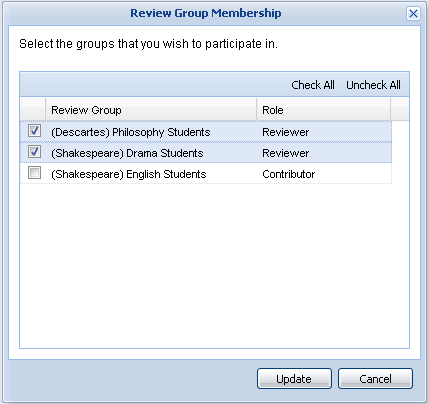
Figure 5.2: The Review Group Membership dialog.